
VS Code Integration
VS Code + Diaphora
Author FML plans with full language support, chat with the plan-authoring assistant, and run plans against Diaphora Cloud — without leaving your editor.
Overview
Diaphora VS Code extension:
The Diaphora extension brings plan authoring into VS Code. FML files get diagnostics, completions, hover, and go-to-definition from the remote frags language server; a side-bar assistant helps write plans; and any plan runs against your Diaphora account through the ephemeral run endpoint — with a live timeline and JSON result.
Plan authors write, validate, and test Diaphora plans without leaving their editor, speeding up plan authoring and keeping the feedback loop tight.
Walkthrough
VS Code in action
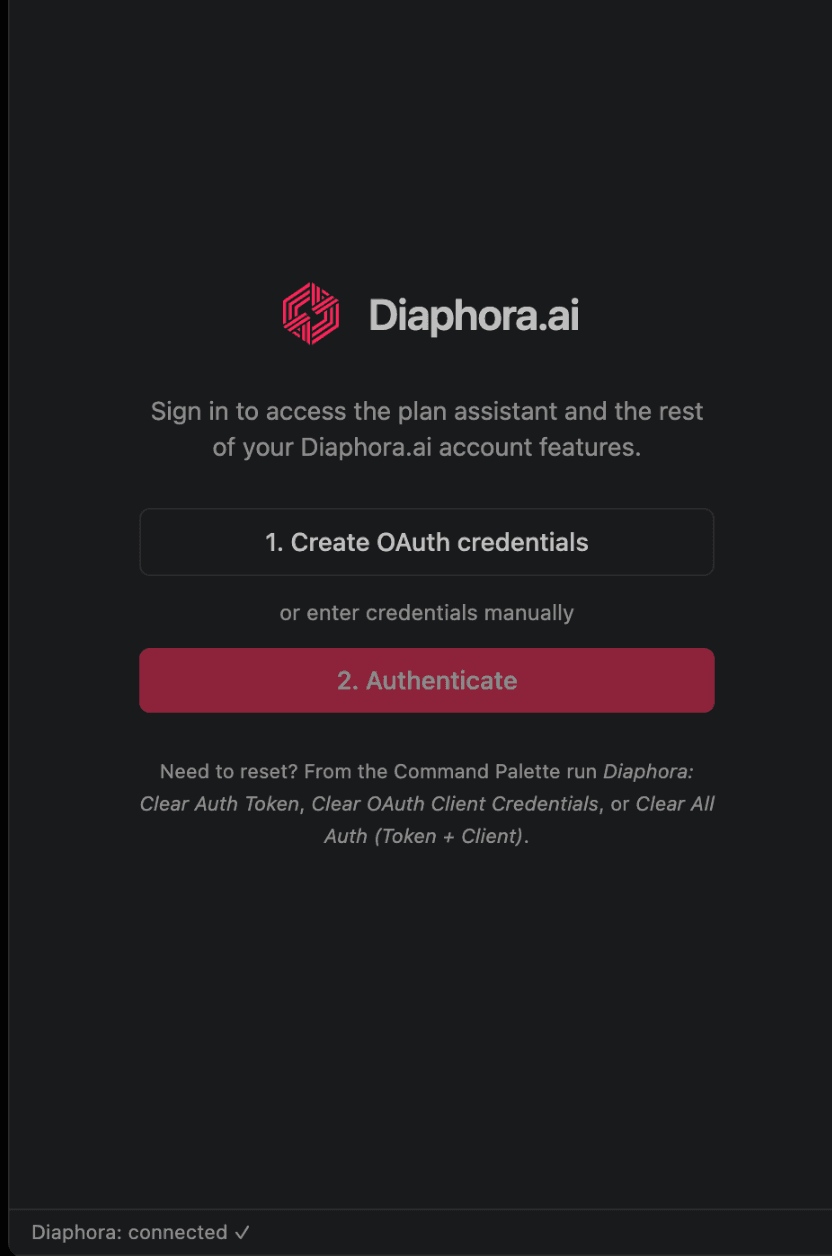
Sign in from the chat splash — create OAuth credentials, then authenticate. Tokens are stored in VS Code SecretStorage, never in the webview.
Screen 1 of 4
Setup
Install the Diaphora extension
The extension will be on the VS Code Marketplace shortly. Until then you can sideload the packaged .vsix. Either way, sign in once with your Diaphora account and point the diaphora.* settings at the Diaphora environment you connect to.
1. Install the extension
Install from the VS Code Marketplace once it is published, or sideload the packaged .vsix (Extensions view → ⋯ → Install from VSIX). Reload VS Code when prompted.
2. Sign in to your Diaphora account
Open a .fml file or run "Diaphora: Open Chat" from the Command Palette. The chat splash walks you through creating an OAuth client and authenticating — tokens are stored in VS Code SecretStorage, never in the webview.
3. Point the settings at your environment
Set the diaphora.* settings — language server URL, web app base, OAuth issuer, and tool profile — to match the Diaphora environment you connect to.
4. Run a plan from the editor
With a .fml file active, run "Diaphora: Run Plan" from the palette or the editor's Diaphora menu. The run executes through your account with a live timeline and JSON result.
How it works
Working with the integration
1. Author FML with full language support
The extension connects to the remote frags language server over ws/wss/tcp, so .fml files get diagnostics, completions, hover, and go-to-definition with no local binary to install.
- Errors surface inline as you type, before you ever run the plan.
- "Diaphora: Restart Language Server" reconnects the client after changing the server URL.
2. Draft with the plan-authoring assistant
A Secondary Side Bar chat is tuned for writing Diaphora plans. It can read and validate the active .fml and fold in LSP diagnostics, so suggestions are grounded in your actual file.
- The assistant is editor-aware — it sees the plan you are working on.
- Use it to scaffold new plans or refine steps without leaving the editor.
3. Reach your MCP and API tools
The assistant can list and call the MCP servers and API control-planes configured under your account's tool profile, so plans can be authored against the tools you actually have connected.
- Tool access follows the profile on your Diaphora account.
- "Diaphora: Configure Tools" opens the web UI to edit that profile.
4. Run against Diaphora Cloud
Execute the active plan through your account via the ephemeral run endpoint. A live timeline shows progress and the final JSON result lands right in the editor.
- Runs use the same account identity you signed in with.
- Iterate quickly: edit the plan, rerun, and inspect the result in place.
Reference
Commands & settings
Commands
All commands are available from the Command Palette, prefixed "Diaphora:".
| Command | ID | Description |
|---|---|---|
| Open Chat | diaphora.openChat | Reveal the Diaphora Chat side bar (also an editor title-bar button). |
| Run Plan | diaphora.chat.runPlan | Run the active/selected .fml plan via your account. In the palette only when a .fml is active; also in the editor, tab, and explorer Diaphora submenu. |
| Configure Tools (MCP / API) | diaphora.chat.configureTools | Open the web UI to edit your tool profile (MCP servers / API control-planes). |
| Restart Language Server | diaphora.restartServer | Reconnect the FML language client (useful after changing the server URL). |
| Clear Auth Token | diaphora.chat.clearTokens | Sign out — clears the stored access token. |
| Clear OAuth Client Credentials | diaphora.chat.clearClient | Forget the per-user OAuth client credentials. |
| Clear All Auth (Token + Client) | diaphora.chat.clearAll | Clear both the token and the client credentials. |
Settings
All settings live under the diaphora.* namespace.
| Setting | Default | Description |
|---|---|---|
| diaphora.server.url | wss://api.diaphora.io/public/lsp | Remote FML language server URL. Supports ws://, wss://, tcp://. |
| diaphora.trace.server | off | LSP trace level (off, messages, verbose). |
| diaphora.chat.webappBase | http://localhost.me:5173 | Diaphora web app base — opens the OAuth-client creation and tool-config pages. |
| diaphora.chat.uiApiBase | http://api.localhost.me | API gateway (Oathkeeper) base — chat requests POST to {…}/ui/chat/gemini. |
| diaphora.chat.oauthBase | http://mcp.localhost.me | OAuth2 issuer (Hydra) base — used for discovery/authorize/token. |
| diaphora.chat.serverContextId | plan-authoring | Server-side chat context id (system-prompt selector). |
| diaphora.chat.toolId | _default | Tool profile id used by the MCP tools. |